

By default, WordPress enables comments on all posts and disables comments on all pages. You can change this to disable or enable comments completely on your website or individually on some posts and pages. You can also control comments in many ways using the options on the Settings page.
Why comment disabling is important in WordPress
- Spam prevention: Comment sections on websites, including WordPress, are often targeted by automated bots that leave spammy and irrelevant comments. These spam comments can be annoying and may include links to potentially harmful websites. Disabling comments can help prevent your website from becoming a target for spam and maintain a more professional appearance.
- Content moderation: Allowing comments means you’ll need to spend time moderating and managing them. If you don’t have the resources to actively monitor and filter comments, disabling them can save you from potential issues related to offensive, inappropriate, or abusive comments that may appear on your site.
- Preventing comment-related issues: Some website owners may choose to disable comments to avoid potential legal issues or liability that could arise from user-generated content. By removing comments, you have more control over the content displayed on your website.
- Faster page loading: Comment sections can sometimes slow down the loading time of web pages, especially if there are many comments or if external resources (such as avatars or social media integration) are involved. Disabling comments can help improve the overall performance and speed of your website.
It’s essential to weigh the pros and cons of enabling or disabling comments based on your website’s goals and audience engagement strategy. If you decide to disable comments, make sure to provide alternative methods for users to contact you or interact with your content if needed.
Disable comments in WordPress using standard Dashboard settings
- Login in your WordPress Dashboad
- Go to setting
- Go to Discussion
- Uncheck the option
- Allow people to submit comments on new posts
- Save your changes
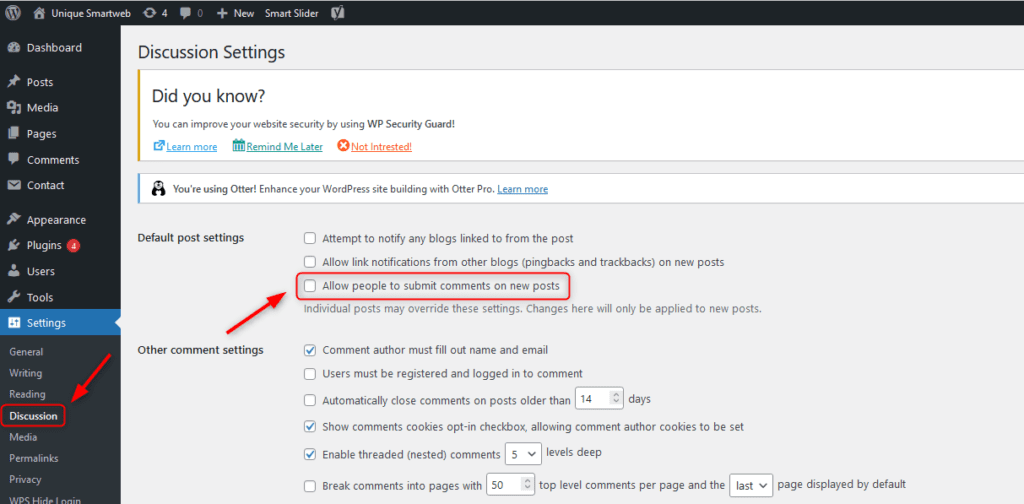
If you still facing comment issue on your website so follow these steps to prevent spam comments.
- Login in your WordPress Dashboad
- Go to setting
- Go to Discussion
- Uncheck the both options
- Allow link notifications from other blogs (pingbacks and trackbacks) on new posts
- Allow people to submit comments on new posts
- Save your changes
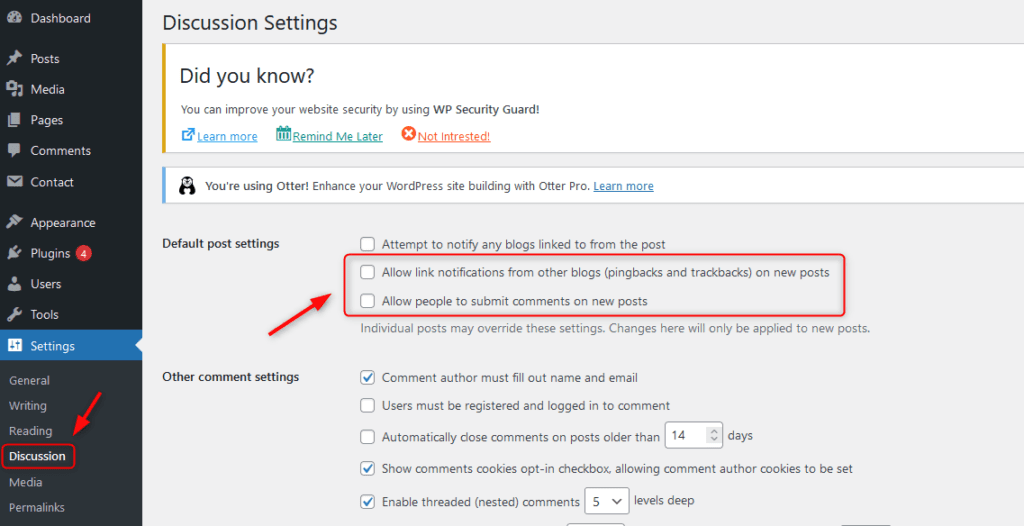
Keep in mind that these steps will disable comments on your future posts. If you want to stop comments on an existing post or page, you need to follow the steps below.
How to Disable existing comments on an individual Post or Page
- Login in your WordPress Dashboard
- Go to Posts
- Click Edit which Post you want to edit
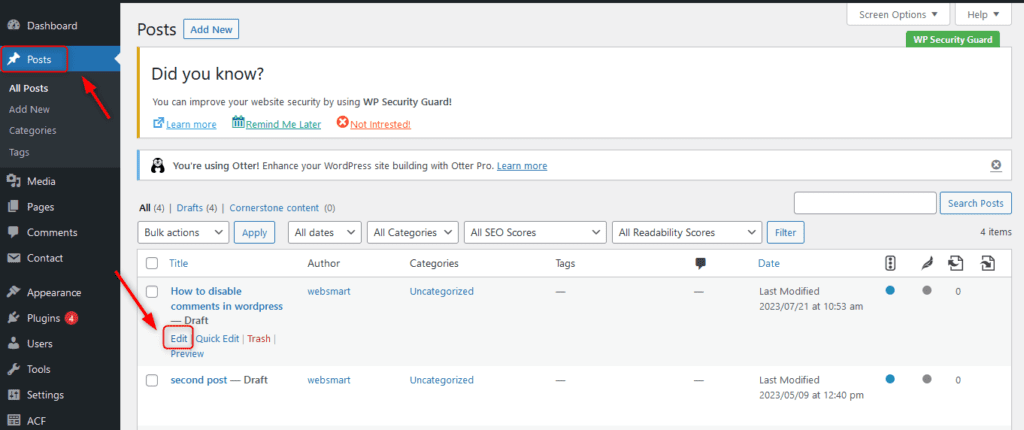
- Go to Discussion in right sidebar
- Uncheck the option
- Allow comments
- Allow pingbacks & trackbacks
- Update Or Save
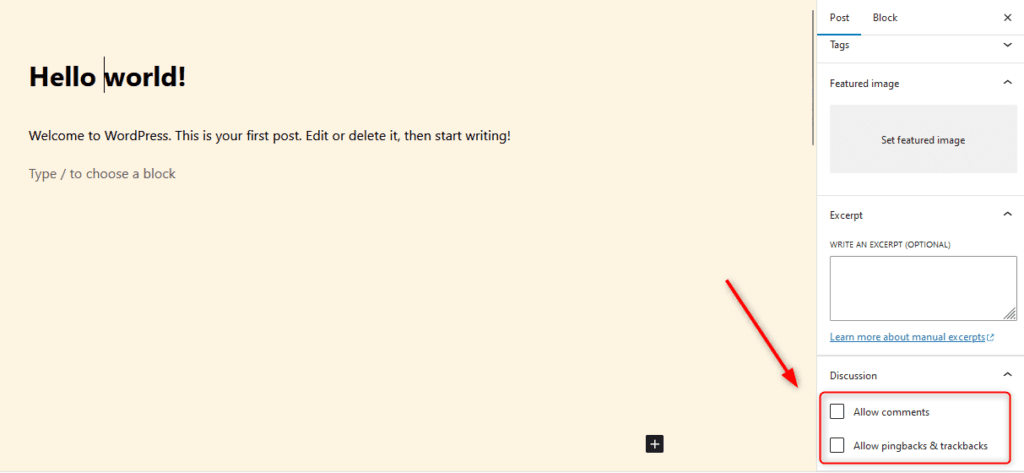
To stop comments on all published (posts or pages) at once
- Login in your WordPress Dashboad
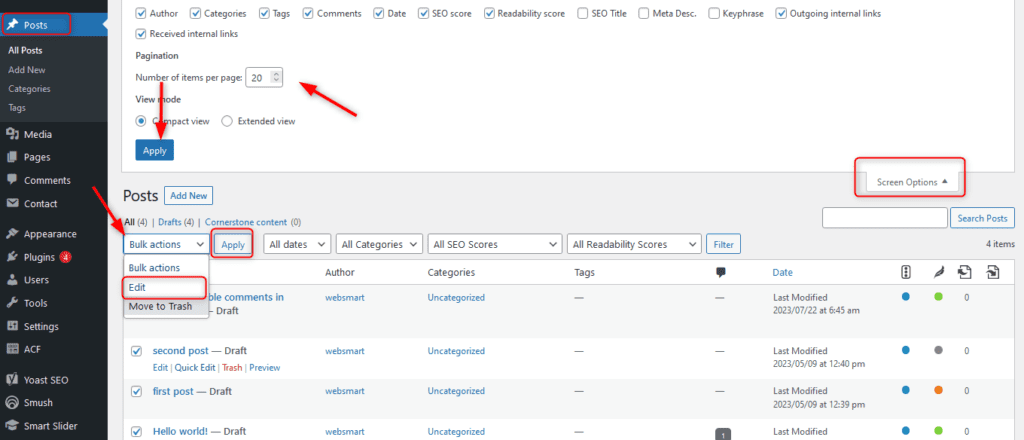
- Go to Posts and select all posts by clicking on the title. If you have more than 20 posts, you can select all posts at once by going to Screen Options. After clicking on the Screen option, you can select the Number of items per page 20 to 100 or more and then select all posts by clicking on the title.
- Click on Bulk actions then select Edit and Click on Apply
- Select the option
- Do not allow
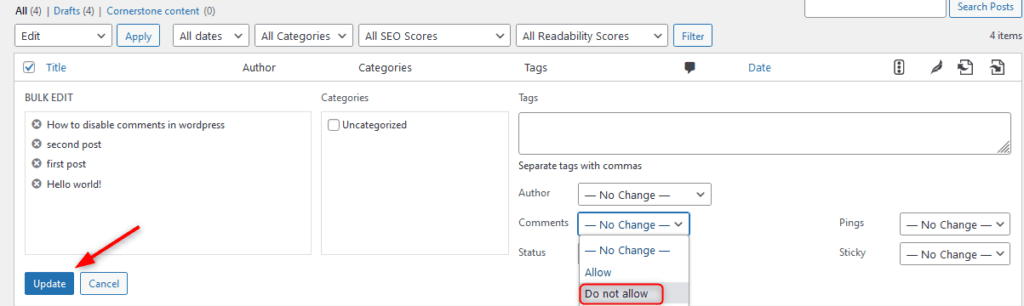
Finally, click on Update to save changes.
What are Trackbacks and Pingbacks in WordPress
Trackbacks and pingbacks are two methods of communication between websites in WordPress. They are used to notify one website when another website links to its content. These features are often included in content management systems like WordPress to facilitate interlinking and communication between different websites.
- Trackbacks:
- A trackback is a notification sent from one website to another when the first website links to a post or page on the second website.
- When a trackback-enabled website publishes a new post that contains a link to another trackback-enabled website’s content, it sends a trackback request to the other website.
- The receiving website then processes the trackback and may display the link and an excerpt of the content that linked to it in the comment section of the linked post.
- Trackbacks were more popular in the past but have become less common due to issues with spam and abuse. Many website owners have disabled trackbacks to avoid dealing with spammy trackback requests.
- Pingbacks:
- Pingbacks work similarly to trackbacks but are more automated and less prone to spam.
- When a pingback-enabled website links to another website’s content, the system automatically sends a pingback to the linked website.
- The receiving website checks the source of the pingback to verify the link’s authenticity. If the pingback is valid, it may display a notification in the comment section or elsewhere on the linked post or page.
- Pingbacks are more secure than trackbacks because they are less likely to be used for spamming purposes.
It’s important to note that while trackbacks and pingbacks can be useful for interlinking content and fostering relationships between websites, they can also be exploited for spamming and abuse. Due to these concerns and the rise of more modern methods of communication between websites, such as webmentions, many WordPress website owners choose to disable trackbacks and pingbacks altogether.
In recent versions of WordPress, the option to enable or disable trackbacks and pingbacks is available in the Discussion Settings section of the WordPress dashboard, allowing website owners to make an informed decision based on their specific needs and preferences.
How to disable Trackbacks and Pingbacks in wordpress
- Login in your WordPress Dashboad
- Go to setting
- Go to Discussion
- Uncheck the option
- Allow link notifications from other blogs (pingbacks and trackbacks) on new posts
- Save your changes